
NetSuite AI Unit Monitoring: The Tools and the Gaps
This is the second piece on NetSuite AI governance. The first covered what AI Units are and what they cost: a shared, prepaid pool provisioned upfront for the whole contract term, with no per-user caps and no quotas. This one is about the part that comes after you turn something on. Where do you watch the spending, what does NetSuite tell you by itself, and who is supposed to be looking.
How do you monitor AI units in NetSuite? Administrators see total usage on the Billing Information page, and a detailed breakdown on the Agent monitoring dashboard at Setup, Agent Management, Agent monitoring in NetSuite Next. The dashboard shows usage by capability and by person, forecasts when units will run out, and raises AI Observation records when something looks wrong. There are no thresholds you can set yourself, and only administrators can see it.
The Two Places Usage Shows Up
Billing Information
Setup, Company, View Billing Information. The AI Units row gives you units provisioned and units used.
It is the quickest check and the only one available on the classic interface. What it gives you is a single account-level number with nothing behind it. You learn that consumption happened, not what caused it.
The Agent monitoring dashboard
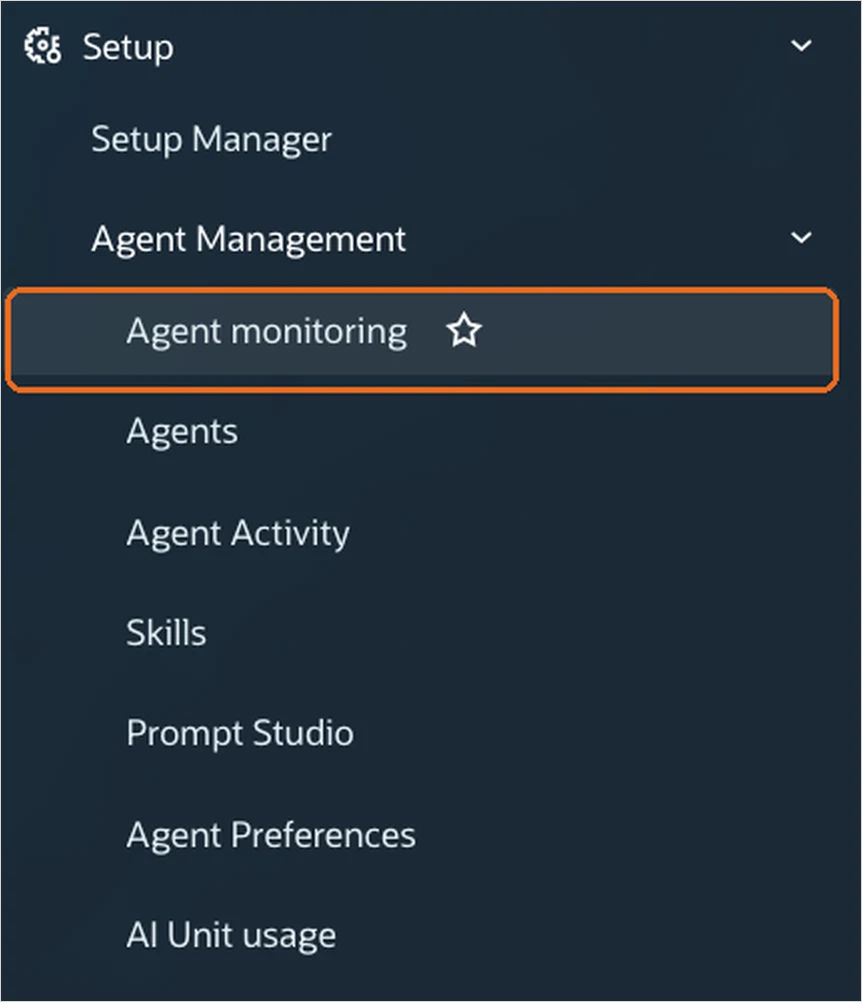
In NetSuite Next, Setup, Agent Management, Agent monitoring. This is the real tool, and it has three parts.
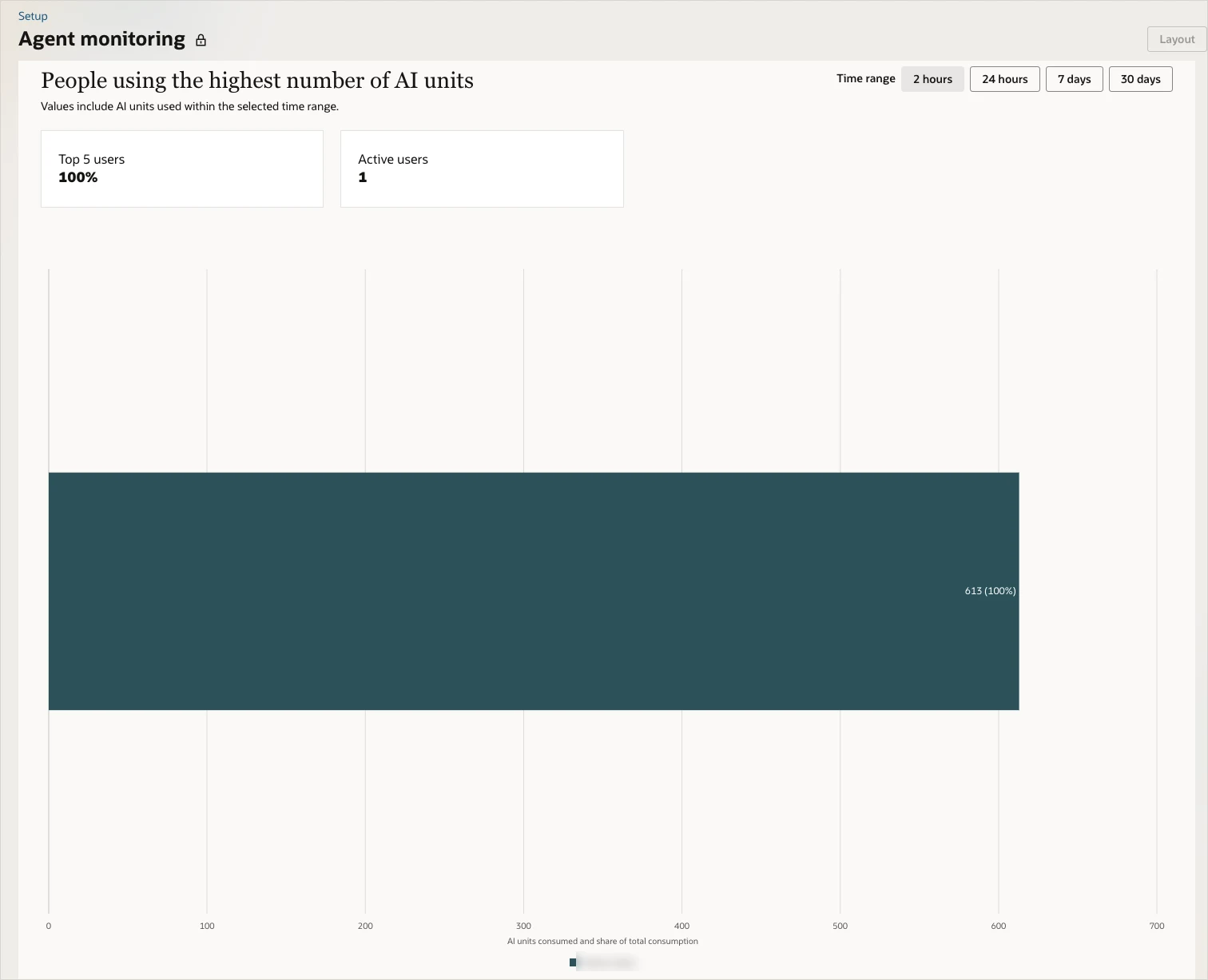
AI unit capacity covers the budget: units at the start of the term, units used, units remaining, and a consumption trend across the term with a forecast date for when the pool runs dry once there is enough history. It compares a recent window against the one before it over two hours, twenty-four hours, seven days or thirty days. Then it breaks usage down two ways that matter: by capability, such as Ask Oracle or a named agent, and by person, showing who is spending the most.
Oracle lists what those views are for, and the list is a decent summary of the decisions available to you: investigate an agent using more than expected, restrict access by role, retrain an individual user, or buy more units.
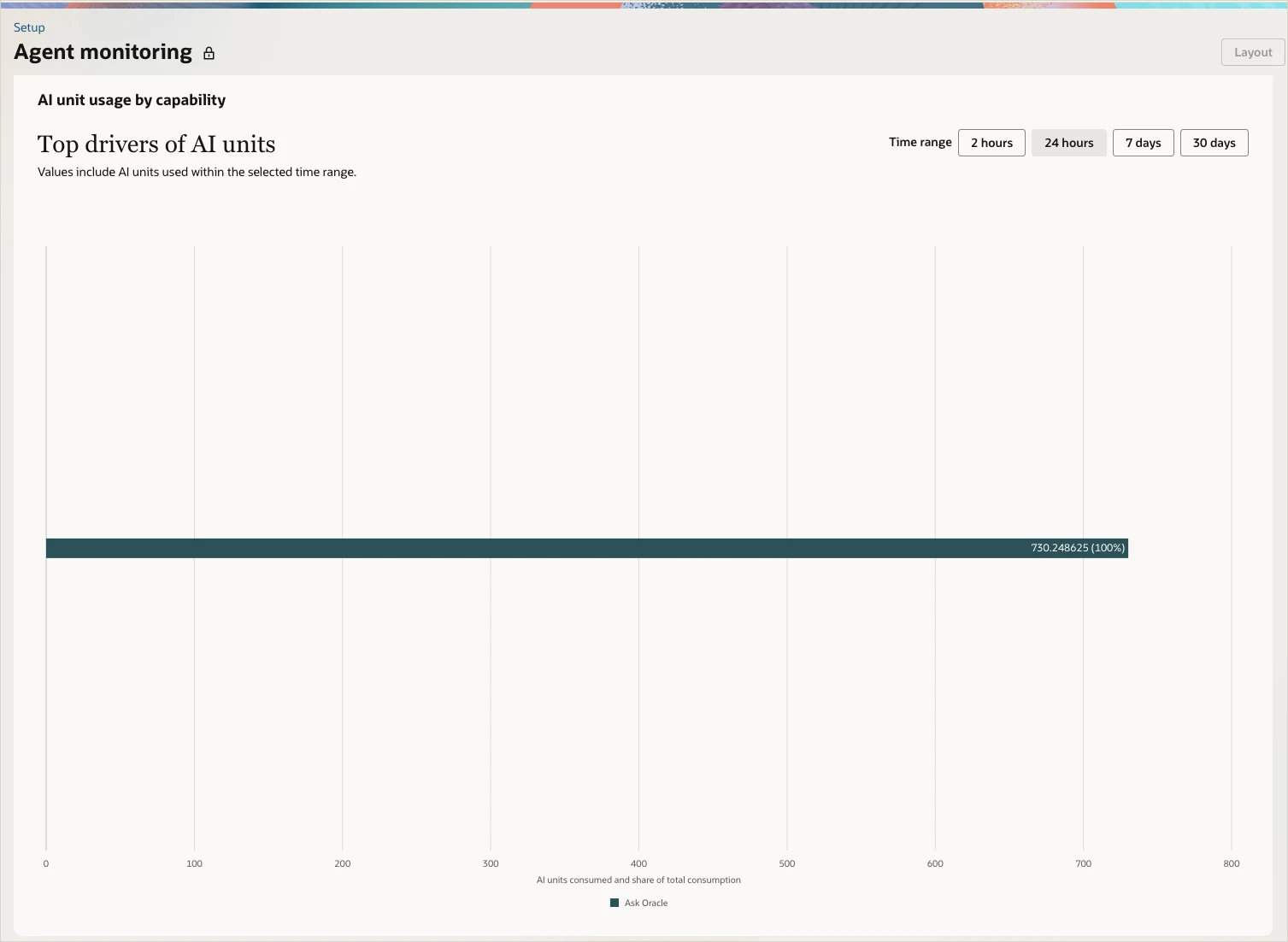
One thing I noticed testing this. Over a twenty-four hour window in which I had used both Ask Oracle and an AI portlet, the capability breakdown listed only Ask Oracle. Portlet usage appears to be counted under it, though the documentation does not say so. If you are trying to work out what a portlet is costing you, that breakdown may not separate it.
Agent run health covers whether custom agents are working rather than what they cost: total runs, completed runs, errors, timeouts, and tool errors inside otherwise completed runs. You can filter by agent and by what triggered the run. Setup, Agent Management, Agent Activity holds the traces for individual runs.
AI Observations is where NetSuite stops reporting and starts flagging. That part behaves differently from the rest of the dashboard, so it is worth taking separately.
What NetSuite Watches For By Itself
You cannot set usage thresholds, but the system does run scheduled evaluations and raises an AI Observation record when it sees one of four things:
- AI units are forecast to run out before the contract term ends
- A capability shows high usage
- A custom agent uses an excessive number of units
- A custom agent has frequent failed runs, tool errors or timeouts
Each record explains what was observed, the likely causes, and recommended actions, and an in-app notification fires when a record is created and again when it is resolved.
The records move through four states, and the design is better than I expected:
| Status | Meaning |
|---|---|
| Active | Raised by the system, waiting for review |
| Monitoring recovery | You acted, and the system keeps checking daily to see whether it worked |
| Resolved | The system confirmed the situation is fixed. Only the system sets this |
| Dismissed | You decided no action was needed. Kept for audit, and raised again if it recurs |
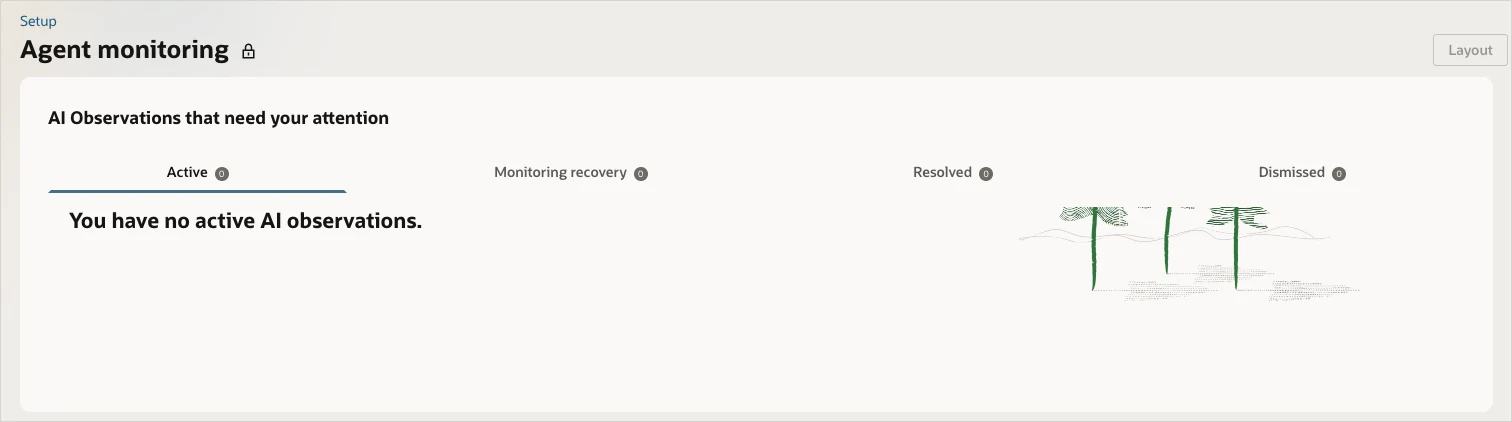
Two details are worth pausing on. Only the system can mark something resolved, so an administrator cannot close a problem by asserting it is fixed. And dismissed records are retained and will reappear if the situation recurs, which means a decision to ignore something leaves a trail. For anything a controller has to defend later, both of those are the right design.
Five Gaps to Plan Around
This is a capable first version and it does more than I expected. From the customer side, five things still need a plan.
Only administrators can see it. Oracle states that no other role has access to the Agent monitoring page, or to the investigation skill in Ask Oracle. In most companies the person who owns the budget is the controller, and the person who can see the spending is the administrator. Those are different people, and nothing in the product connects them.
Notifications are in-app. Someone has to be logged in and looking. An alert that a pool will run dry before the term ends is exactly the kind of thing that should reach somebody by email, and it does not.
The thresholds belong to the system, not to you. High usage and excessive are not defined in the documentation, and you cannot say that the finance team gets a certain number of units a month. The system decides what is worth flagging.
It is NetSuite Next only. Accounts on the classic interface have the Billing Information total and nothing else.
The data stays on the page. I have not found a documented saved search, SuiteQL table or export for usage by person or capability, and the longest window is thirty days. Anything you want to trend across a quarter has to be captured as you go.
A Balance Check You Can Build
One of those gaps has a straightforward fix.
The N/llm module includes llm.getRemainingUsage(), which returns the units remaining in the account, with an asynchronous form available as llm.getRemainingUsage.promise(). The older free-usage method is deprecated and now routes to the same call.
That is enough for a small scheduled script:
- Read the balance once a day, or more often if you want.
- Write each reading to a custom record with a timestamp.
- Compare it against the previous reading.
- Send an email when the balance falls below a floor you set, or when consumption since the last reading exceeds a limit you set.
The value is not the script. It is who receives the email. NetSuite tells the administrator, in the application, against thresholds Oracle chose. This tells the controller, by email, against thresholds the business chose. When one arrives, the administrator opens Agent monitoring to find out which person, capability or agent caused the jump.
Two honest limits. The script sees an account balance and nothing else, so it tells you that something spent units, not what. And Oracle does not state whether checking the balance itself consumes units, so test that before you schedule it hourly.
A Monthly Routine
None of this needs a governance programme. A short routine covers most of the risk.
Name one owner. The administrator runs the review. The controller owns the budget and the decision to buy more.
Review monthly, inside close. Compare units used against a straight-line pace for your term, and check the forecast date on the dashboard. Both are quick, and the forecast is the number that matters.
Review again after every change. Two or three days after a new agent, a new script that calls AI, a new SuiteApp, or a wider Ask Oracle rollout. That is when a burn rate changes, and it is the only time a spike has an obvious cause.
Roll out by role. Start with a pilot group, watch a month, then widen.
Watch the expensive things. Portlets and research-style questions cost far more than simple questions. Decide where they earn it.
Plan for the renewal. Unused units expire at term end. The goal is to use them well rather than to hoard them.
Who Should Own This
AI units are a contract allowance with a budget, a burn rate and a renewal date. NetSuite's tooling shows the administrator what happened. The decisions about who should be using AI, for what, and whether to buy more are business decisions, and they sit with whoever owns the number.
One useful test: if your pool were forecast to run dry four months before renewal, who would find out, and how long would it take them? If the honest answer is that nobody is watching, the tooling is not the gap.
Need help with NetSuite?
If your team is switching on NetSuite AI and nobody owns the budget yet, a structured review is the cheap way to find out what is already running and what it is costing. The Health Check covers fifteen areas from read-only access and returns findings ranked by risk and effort.
Frequently Asked Questions
Where can I see AI unit usage in NetSuite?
Administrators can see total usage at Setup, Company, View Billing Information. In NetSuite Next, the Agent monitoring dashboard at Setup, Agent Management, Agent monitoring breaks usage down by capability and by person, shows a consumption trend across the term, and forecasts when the pool will run out.
Who can see the Agent monitoring dashboard?
Only users with the Administrator role, and only in NetSuite Next. Oracle states that no other role has access to the page or to the Agent monitoring investigation skill in Ask Oracle, which means the person who owns the budget often cannot see the spending.
Does NetSuite alert you before AI units run out?
It raises an AI Observation record when units are forecast to run out before the contract term ends, when a capability shows high usage, or when a custom agent uses an excessive number of units or fails repeatedly. Notifications are in-app rather than by email, and the thresholds are set by the system rather than by you.
 By: Patrick Olson 10/29/2026
Read Next - What a NetSuite Administrator Actually Costs