
Managing NetSuite Bill Capture Email Notifications and Sender Restrictions
The Problem
If you have configured NetSuite's Bill Capture for vendor bill scanning (the email submission feature many admins still call the Email Capture Plugin), you have probably run into two frustrating limitations. We have hit both of these on client AP implementations, and neither has a native fix today.
The first is that every email sent to your capture inbox triggers an automated reply back to the original sender. On success, the vendor gets a generic confirmation. On failure, they get a confusing error message with no branding and no clear next steps.
As of mid-2026, there is no supported way to turn these notifications off. Disabling the vendor confirmation and rejection emails is a popular request. It is logged in NetSuite's SuiteIdeas portal as enhancement 756799 and has been open since at least 2024 with no delivery date. The Transaction Email Plugin, which admins often reach for to control transaction notifications, does not cover these messages.
The second limitation is that Bill Capture requires you to register each vendor's email address on their vendor record before they can successfully submit an invoice. If an unregistered sender emails your capture inbox, the submission fails and they receive one of those unhelpful automated error messages.
Both problems stem from the same root cause: Bill Capture reads the sender address of the inbound email and uses it to validate the submission. If we can control what that sender address looks like when it hits NetSuite, we can manage both at once.
The Solution: A Gmail Relay via Google Apps Script
The mechanics are simple. Instead of having vendors email the NetSuite capture address directly, you route all inbound AP emails through a Google Workspace inbox first. A Google Apps Script monitors that inbox and, when an email arrives, creates a brand new email from the same Google Workspace address and forwards it to the NetSuite capture inbox with all attachments intact.
Because the email NetSuite receives always originates from the same Google Workspace address, one tied to a licensed Bill Capture employee record, it passes sender validation every time, regardless of who the original vendor email came from.
One thing to be clear about: this does not make the NetSuite notifications disappear. NetSuite still sends its confirmation and rejection emails, but now they go back to the relay inbox instead of the vendor. Nobody needs to read them, and the script is built to ignore them so they never loop back into NetSuite.
What You Need
- A Google Workspace account (the relay inbox)
- A NetSuite employee record with the email address of that Google Workspace account
- The Scanned Vendor Bills permission assigned to that employee record
- The Bill Capture SuiteApp installed and configured
- Access to Google Apps Script at script.google.com
Step 1: Set Up the Employee Record in NetSuite
Create or update an employee record in NetSuite with the Google Workspace email address as the employee email. Then do the following:
- On the Access tab of the employee record, check Give Access and assign an appropriate role.
- On the Global Permissions tab, add Scanned Vendor Bills with at least Create level access.
- Navigate to Documents > Scanned Vendor Bills and manually upload any PDF for this employee. This forces NetSuite to immediately create the required file cabinet folder for that employee. Without this folder, submissions will fail even if permissions are configured correctly. NetSuite says it creates the folder automatically within 24 hours, but the manual upload triggers it instantly.
Step 2: Configure Gmail Forwarding (Optional)
If you want a dedicated AP email address that is separate from the relay inbox, you can set up Gmail forwarding from an alias or a separate address to the relay inbox. If you are using the relay inbox directly as your AP address, you can skip this step.
Note: if you use Gmail's native forwarding, be aware that forwarded emails preserve the original sender in the From header. This is exactly the problem the Apps Script solves, so do not forward directly to the NetSuite capture address.
Step 3: Deploy the Apps Script
Go to script.google.com while signed in to the Google Workspace relay account. The script sends from whatever account it runs under, so the account you authorize it with is the sender NetSuite will see. Make sure that account's address matches the email on the Bill Capture employee record you set up in Step 1.
Create a new project and paste in the following script:
A starting point, not a drop-in
This is a version of the script we have used, shared to show the approach. Treat it as a starting point, not production code. Customize it for your own environment, test it thoroughly in a sandbox first, and confirm it behaves the way you expect before you point it at a live NetSuite account.
function forwardToNetSuite() {
  var netsuiteAddress = "emails.XXXXXXXX.XXXX.XXXXXXXXXX@XXXXXXXX.email.netsuite.com";
  var processedLabel = "NetSuite-Forwarded";

  // Senders whose mail should never be relayed back to NetSuite.
  // This stops NetSuite's own confirmation/error replies from being
  // forwarded back into the capture inbox and creating a loop.
  var excludedSenders = [
    "system@sent-via.netsuite.com"
    // add any other NetSuite notification addresses here
  ];

  // Create the label if it does not exist yet
  var label = GmailApp.getUserLabelByName(processedLabel) ||
              GmailApp.createLabel(processedLabel);

  // Only look at unprocessed threads in the inbox that actually carry
  // an attachment. Scoping to in:inbox is critical: without it, the
  // search also matches the messages this script sends (which land in
  // Sent with their attachments), and the script forwards its own
  // output back to NetSuite over and over, creating an infinite loop.
  // NetSuite's reply notifications have no attachment, so they never
  // enter the loop in the first place.
  var threads = GmailApp.search("in:inbox -label:" + processedLabel + " has:attachment", 0, 10);

  threads.forEach(function(thread) {
    thread.getMessages().forEach(function(message) {
      var sender = message.getFrom().toLowerCase();

      // Skip excluded senders (second line of defense against loops)
      var isExcluded = excludedSenders.some(function(excluded) {
        return sender.indexOf(excluded.toLowerCase()) !== -1;
      });
      if (isExcluded) {
        return;
      }

      // Forward only the real document attachments, not inline images/logos
      var attachments = message.getAttachments({ includeInlineImages: false });
      if (attachments.length === 0) {
        return;
      }

      GmailApp.sendEmail(
        netsuiteAddress,
        message.getSubject(),
        message.getPlainBody(),
        {
          attachments: attachments,
          name: "Your Company Name" // optional: display name only, does not lock the sender
        }
      );
    });

    // Label the thread so it is not processed again
    thread.addLabel(label);
  });
}
Replace the placeholder NetSuite capture address and the optional display name with your own values.
Run the function once manually to grant Gmail permissions when prompted. Then set up a time-based trigger: click the clock icon in the left sidebar, add a trigger for forwardToNetSuite, set it to Time-driven, and choose a Minutes timer at whatever interval makes sense for your workflow.
A few notes on how this version behaves:
- It uses a Gmail label rather than read or unread status to track processed emails, so it will not miss an email just because you opened it before the script ran.
- The search is scoped to
in:inbox, which is the single most important detail. Without it, the search also matches the messages the script itself sends (they land in Sent with their attachments), so the script forwards its own output back to NetSuite again and again in an infinite loop. Scoping to the inbox keeps the script looking only at genuinely inbound mail. - The
has:attachmentfilter, combined with the excluded-senders list, keeps NetSuite's own confirmation and rejection emails from being relayed back into the loop. - Filtering out inline images means vendor signature logos do not get forwarded as junk attachments that confuse Bill Capture's document matching.
- Sending from the account the script runs under means there is no hardcoded sender address to maintain.
The Side Effect
Because all submissions now come from the same relay address, you no longer need to register individual vendor email addresses on their vendor records in NetSuite. Any email sent to the relay inbox gets forwarded to NetSuite with a clean, authorized sender.
From an operational standpoint this is a significant improvement. You can onboard new vendors without any configuration in NetSuite. Any vendor can email an invoice and it will land in Scanned Vendor Bills for review without any setup required on your end.
The Security Tradeoff
We want to be direct about what this approach changes from a security perspective. This is the part of the conversation we have with every client before turning a relay like this on.
With standard Bill Capture configuration, only pre-registered sender addresses can submit to your capture inbox. This acts as a basic layer of access control. With the relay approach, that control is removed. Anyone who knows or guesses your relay inbox address can send a file to NetSuite.
In practice, the risk is more limited than it might sound. Bill Capture attempts to match the submitted document to an existing vendor record. A random submission from an unknown party is unlikely to match a vendor, and even if it did, it would require a human to review and approve before becoming a posted transaction. No payment is ever triggered automatically.
The more realistic threat is not a random actor but a targeted one: someone impersonating a real vendor and submitting a fraudulent invoice with altered payment details. This is a known fraud pattern. The controls that protect against it are process controls, not technical ones: dual approval on vendor bank account changes, mandatory out-of-band verification before updating payment details, and secondary review on large or unexpected invoices. Those controls should exist regardless of how the invoice entered NetSuite.
The relay approach trades a pre-registration access control for operational simplicity. Whether that tradeoff is appropriate depends on your transaction volumes, vendor base, and downstream approval process. If you have mature AP approval workflows, the risk is manageable. If you are processing high-value invoices without strong approval controls, the pre-registration requirement is a meaningful extra safeguard worth keeping.
The relay is only as safe as your approval process
If you are removing the pre-registration control, the approval workflow behind it has to be solid. Greenlight Approvals handles vendor bill approval routing, dual approval, and the kind of controls that keep a fraudulent invoice from becoming a payment. If you want to understand where NetSuite's native approvals stop, we cover that in NetSuite Approval Workflows: What SuiteFlow Can and Can't Do.
Doing the Same Thing with Power Automate
If your organization is on Microsoft 365 rather than Google Workspace, you can build the same relay using Power Automate. The logic is identical and the build is a little simpler, because Power Automate handles attachments natively without looping through them in code.
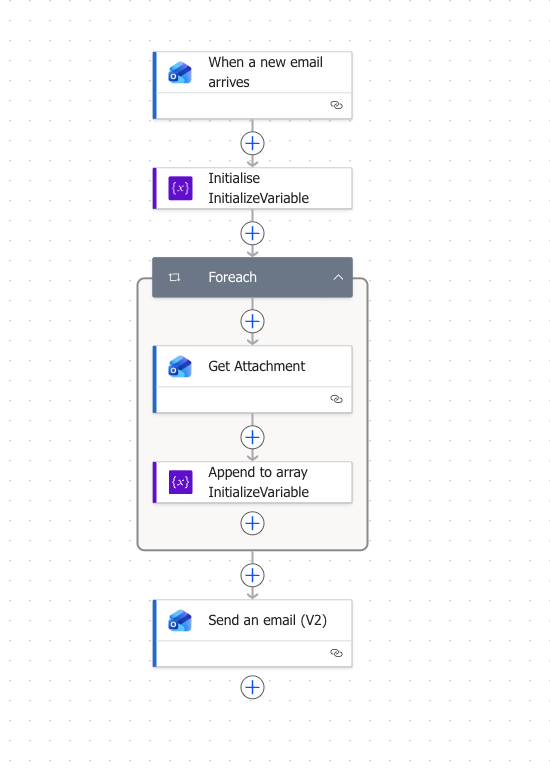
The flow has four steps:
- Trigger: When a new email arrives. Set this on the shared mailbox or Outlook account you are using as your AP relay inbox. You can optionally filter to only emails with attachments if you want to avoid forwarding empty emails to NetSuite.
- Initialize Variable. Create an empty array variable to hold the attachment data you will collect in the next step.
- Foreach loop over attachments. For each attachment on the incoming email, use the Get Attachment action to retrieve the file content, then use Append to Array Variable to add the attachment name and content to your array.
- Send an Email (V2). Send a new email to the NetSuite capture address. Set the From field to the Microsoft 365 address associated with your Bill Capture employee record in NetSuite, pass through the original subject and body, and attach the array variable containing all collected attachments.
The result matches the Apps Script approach: NetSuite receives one consistent sender, all attachments intact, and the vendor's own address never shows up on the transaction.
The main advantage of Power Automate over Apps Script is that it is event-driven rather than polling on a timer. The relay fires the moment an email arrives rather than waiting for the next scheduled run, which matters once your AP volume climbs. The tradeoff is that Power Automate requires a Power Automate license, whereas Apps Script is included with any Google Workspace subscription.
Summary
Bill Capture has two limitations that create friction in real-world AP workflows: vendor notification emails you cannot turn off, and mandatory sender pre-registration. A relay built on Google Apps Script or Power Automate manages both by funneling every submission to NetSuite from one consistent inbox, no matter who the vendor was.
Neither build is complicated, and both run inside your existing email platform with no third-party services. What takes more thought than the setup is the security tradeoff: make sure the approval process downstream is solid enough to cover for the access control you are giving up.
If you are rethinking Bill Capture itself
The relay fixes Bill Capture's rough edges, but if the notification and pre-registration limits are symptoms of a bigger AP problem, it may be worth looking at a native alternative. Greenlight Bills handles bill entry inside NetSuite, with the routing and approval controls built in rather than bolted on afterward.
Frequently Asked Questions
What is NetSuite Bill Capture?
NetSuite Bill Capture is the SuiteApp that scans vendor bills and lets you submit invoices by email or upload. The email submission feature is sometimes called the Email Capture Plugin. Bill Capture reads the sender address of each inbound email to decide whether the submission is allowed.
Can you disable the vendor notification emails NetSuite Bill Capture sends?
Not natively. There is no setting to turn off the confirmation and rejection emails Bill Capture sends back to the original sender. The request is logged in the NetSuite SuiteIdeas portal as enhancement 756799 and has been open since at least 2024. Routing AP email through a relay inbox keeps those notifications away from your vendors.
Does the NetSuite Transaction Email Plugin control Bill Capture emails?
No. Admins often reach for the Transaction Email Plugin to customize or suppress transaction notifications, but it does not cover the confirmation and rejection emails Bill Capture sends on email submissions. Those messages are separate, and there is no supported way to disable them as of mid-2026.
Is Bill Capture the same as the NetSuite Email Capture Plugin or Email Plugin?
The terms get used loosely. The current SuiteApp is Bill Capture, and its email submission option is what many admins call the Email Capture Plugin or simply the Email Plugin. It is different from the Transaction Email Plugin, which is a separate SuiteScript plugin for customizing transaction emails.
How do you let any vendor email invoices into NetSuite without pre-registering them?
Bill Capture only accepts email from sender addresses registered on a vendor record. Routing all AP email through a single relay inbox that forwards to NetSuite means every submission arrives from one approved sender, so you can accept invoices from any vendor without configuring their address first. Keep your downstream approval controls strong, since this removes a layer of access control.
Need help with NetSuite?
If you are running NetSuite Bill Capture and want help getting AP intake and the approval process behind it right, that is the kind of thing we help NetSuite teams sort out.
 By: Patrick Olson 6/19/2026
Read Next - NetSuite Approval Workflows